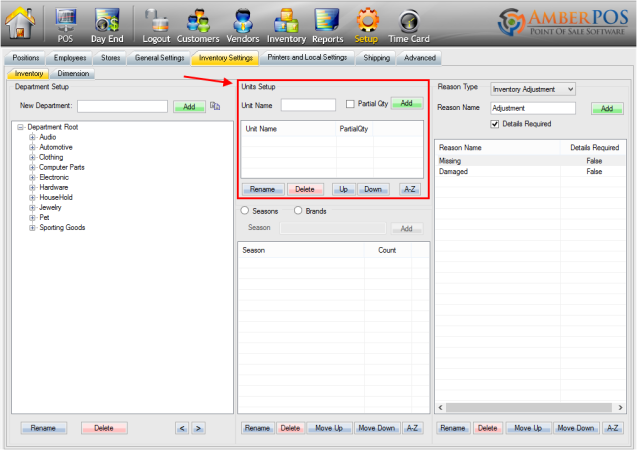
1. Log into the system, and then access the Setup menu
2. Select the  tab near the top of the screen.

3. Location of Units:
4. Overview of units:
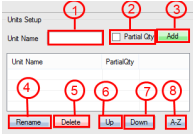
1. Type in the unit name here.
2. Click  next to
  to select the unit as a partial quantity.
3.  to apply the unit to POS.
4.  to rename any already applied units.
5.  to remove a created unit.
6.  to move a selected unit up the list.
7.  to move a selected unit down the list.
8.  to sort the list of unit alphabetically.
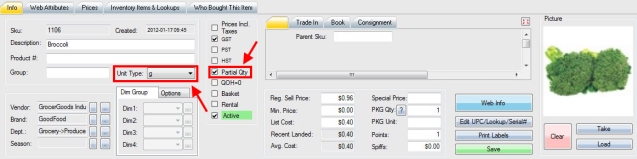
5. Partial Quantities can ONLY be applied to a SKU that has Partial Qty enabled and a Unit Type selected. To access these settings, enter the Inventory screen and select the SKU to change the settings for.
Article written with AmberPOS version 4.14.05.05
Updated